Install the Streamer and Viewer Apps
You can install Streamer Apps and Viewer Apps on this page. Follow the instructions to install the application.
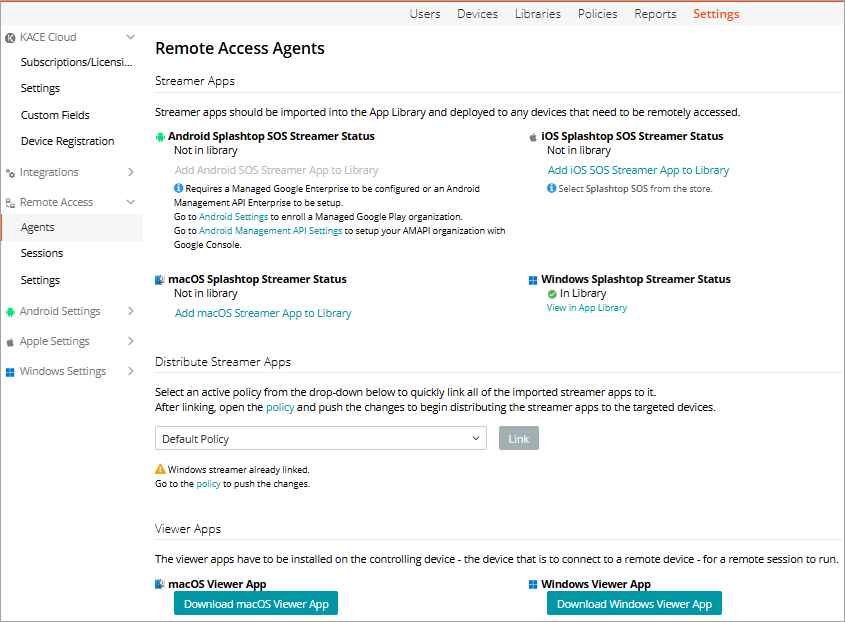
For Streamer Apps
You must import the streamer apps into the app library and deploy them to any desktop devices that need to be accessed remotely.
Go to Settings > Remote Access > Agents.
On the Remote Access Agents page, in the Streamer Apps section,
- You can import Streamers for the desired OS to Apps library. You need to click Add <OS> Streamer App to Library to import the Streamer to Apps Library.
For example, click Add macOS Streamer App to Library to import the streamer for macOS. - You can import the following Streamers to Apps library:
- You can view the import status of Streamers for different OS:
- Not in library- The Streamer is not imported in the Apps Library.
- In Library - The Streamer is imported in the Apps Library.
- You can view the following links for the Streamers for different OS:
- Add <OS> Streamer App to Library - Click it to add the Streamer App to the App Library
- View in App Library - the App is imported in the App Library. Click the link to view the app in the App Library.
- When you import a Streamer app to the App library, the Not in library status changes to In Library, and the Add <OS> Streamer App to Library link changes to View in App Library.
To import Splashtop SOS Streamer for Android,
Before you import the Streamer app, you must have Managed Google Enterprise configured or an Android Management API Enterprise set up. To do this,
- Go to Settings > Android Settings > Managed Google Enterprise to enroll Managed Google Play organization. For more information, seeAndroid EMM: Link your Google Play organization with KACE Cloud .
- Go to Settings > Android Settings > Android Management API Settings to configure Android Management API (AMAPI) integration. For more information, see AMAPI: Configure Android Management API Integration.
Once you configure Managed Google Enterprise or set up Android Management API Enterprise, the Add Android SOS Streamer App to Library is enabled. You can now import the Streamer app to the Library.
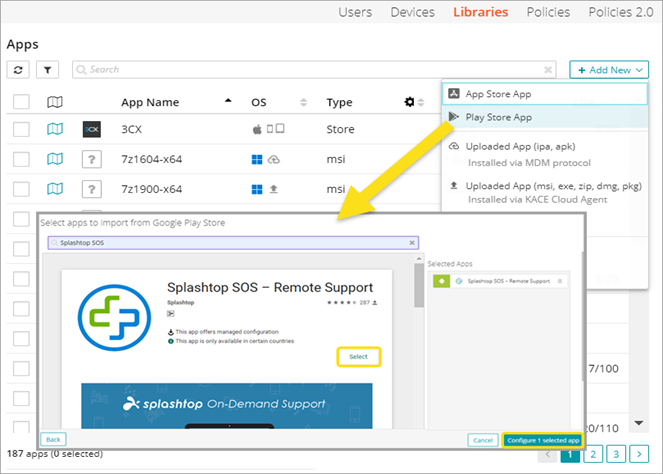
To import Android SOS Splashtop streamer,
- Click Add Android SOS Streamer App to Library.
You are redirected to the Apps page in Libraries. The Add New Apps From App Store section displays the list of apps in the Play Store. - Select the Splashtop SOS – Remote Support app.
- Click Add.
The application gets imported to the Apps library. - The Add Android SOS Streamer App to Library status changes to View in App Library.
- Click View in App Library to open the Splashtop Streamer details on the Apps page. You can edit the details.
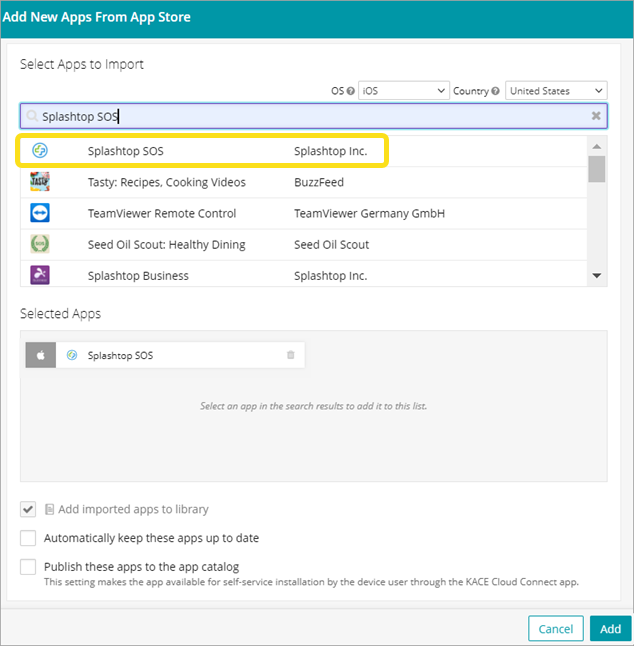
To import the iOS Splashtop SOS Streamer app
You must import the Splashtop streamer from the App Store for iOS, and then add it to Apps library.
- Click the Add iOS SOS Streamer App to Library.
You are redirected to the Apps page in Libraries. The Add New Apps From App Store displays the list of apps in the App Store. - Select Splashtop SOS.
-
Click Add.
The application gets added to the Apps library and the Add iOS SOS Streamer App to Library status changes to View in App Library. - Click View in App Library to open the Splashtop Streamer details. You can edit the details.
To import Windows Splashtop Streamer to Apps library,
-
Click the Add Windows Streamer App to Library.
The application gets imported to the Apps library. The Add Windows Streamer App to Library status changes to View in App Library. - Click View in App Library to open the Splashtop Streamer details. You can edit the details.
To import macOS Splashtop Streamer to Apps library,
-
Click the Add macOS Streamer App to Library.
The application gets imported to the Apps library. The Add macOS Streamer App to Library status changes to View in App Library. - Click View in App Library to open the Splashtop Streamer details. You can edit the details.
Distribute Streamer Apps to Devices
You can distribute imported streamer apps to the targeted devices. After linking the devices to policy you must push the changes to initiate apps distribution process.
To link Streamer apps to policy and distribute them to devices,
- Go to Settings > Remote Access > Agents to open Remote Access Agents page.
- In the Distribute Streamer Apps section, select an active policy from the drop-down list.
- Click Link to associate the Streamer apps with the policy.
After linking is successful, a message displays below the drop-down box stating that the linking was successful.
NOTE: The Streamer apps that are in the App Library will get linked to the policy.
- Click the policy link in the message to open the policy details.
- Click Push Changes to distribute the linked Streamer Apps to devices.
For Viewer Apps
You must install the required viewer app on the controlling device.
- Click the Download macOS Viewer App or Download Windows Viewer App to download the installer file.
- Run the installer to install the viewer application.